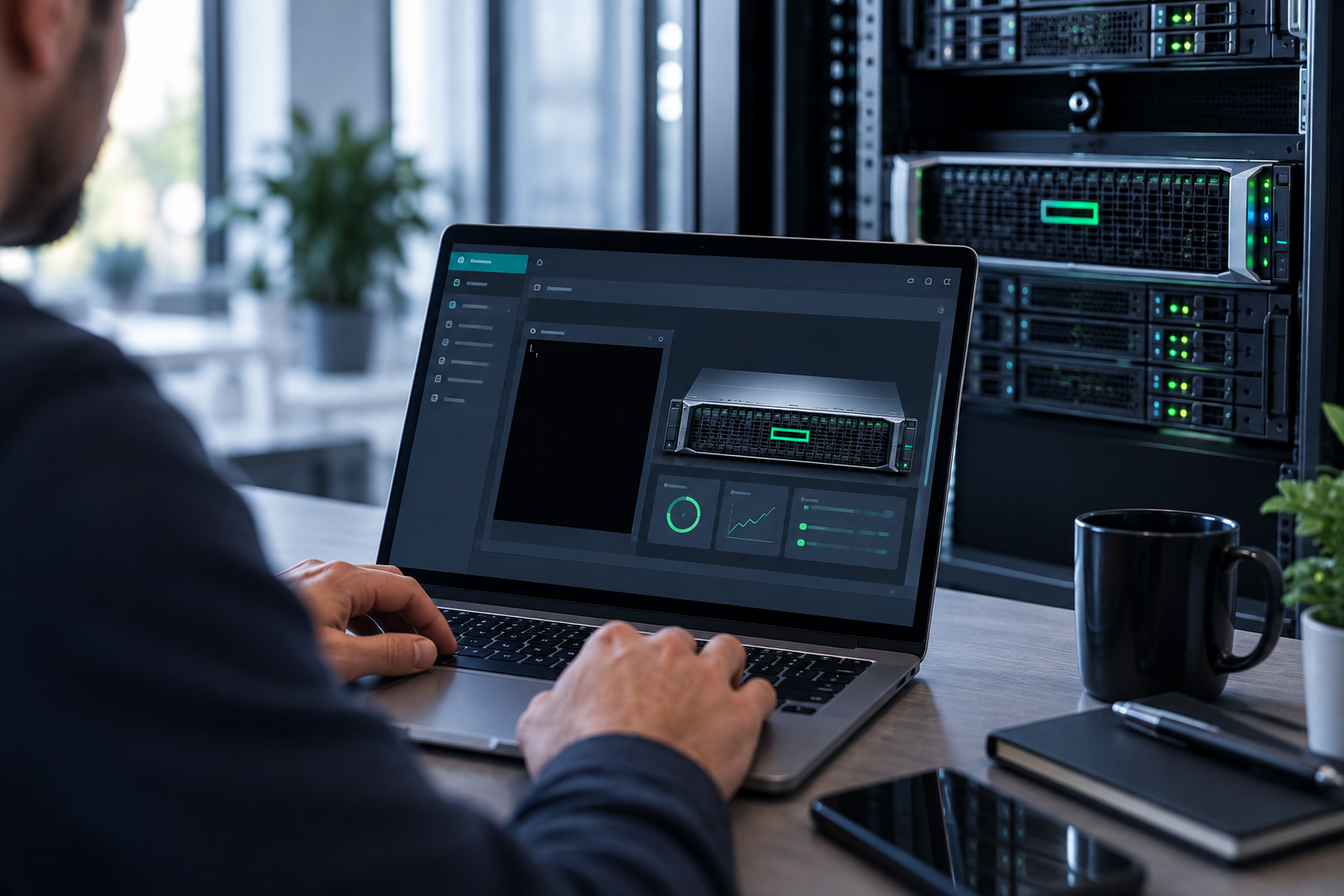
The short answer: if your staff use screens for an hour or more at a time, most days, the Health and Safety (Display Screen Equipment) Regulations apply, including to people working at home. You must assess each workstation, provide training, plan for breaks, and pay for eye tests on request. Beyond that, the practical decisions are screen size and resolution, whether the monitor also docks the laptop, and whether to use a monitor arm.
Part 1: what UK employers have to do
Who counts as a display screen user
There's no fixed number of hours in the law. The Health and Safety Executive's working test is someone who uses screens more or less daily, in spells of an hour or more at a time, where information has to move quickly to or from the screen, or where the work needs high concentration. Many employers simply treat everyone who uses a computer as a user, which the HSE accepts as a reasonable approach.
The duties, in short
- Assess each workstation and reduce the risks you find. The HSE's free workstation checklist (CK1) covers keyboard, mouse, screen, software, furniture and environment, and a trained employee can complete it themselves.
- Meet the standards in the Schedule: a stable, readable image with adjustable brightness and contrast, a screen that swivels and tilts freely, a separate keyboard with space in front of it to rest the hands, an adjustable chair, enough desk space, and control of glare and reflections.
- Plan for breaks: the law sets no timings, but HSE guidance says short frequent breaks beat long infrequent ones, and gives the benchmark that 5 to 10 minutes after 50 to 60 minutes of continuous screen work is better than 15 to 20 minutes every two hours.
- Train people before they become users, and tell them about the risks and the controls.
- Pay for eye tests on request, and for repeat tests. If a test shows glasses are needed specifically for screen distance, you pay for a basic pair. Ordinary prescriptions stay the employee's cost.
- Record significant findings if you employ five or more people.
Home and hybrid workers
The regulations cover people who work at home permanently or long-term, and those who routinely split their time. They need their own assessment, and you can't charge a worker for equipment the assessment shows they need.
Setting up a desk properly
- Adjust the chair first, so forearms are roughly horizontal, then set screen height. HSE's guidance is that the eyes should be about level with the top of the screen.
- Keep the small of the back supported, feet flat on the floor, and use a footrest only if one is actually needed.
- Leave space in front of the keyboard to rest hands and wrists, and keep the mouse close enough to use with a straight wrist.
- Position the desk so the screen doesn't face a window or bright light. Moving the screen beats fitting an anti-glare filter.
- Laptops: a laptop used all day needs a separate keyboard and mouse, and the screen raised to a sensible height, either on a riser or by using a monitor.
Part 2: choosing the monitors
Size and resolution go together
Resolution on its own doesn't tell you how sharp a screen looks. What matters is how many pixels per inch it works out at:
| Size and resolution | Roughly | Suits |
|---|---|---|
| 24in Full HD (1920 × 1080) | ~95 pixels per inch | General office work; no display scaling needed |
| 27in QHD (2560 × 1440) | ~109 pixels per inch | More room for two documents side by side; still comfortable unscaled |
| 27in 4K | ~163 pixels per inch | Very sharp, but needs display scaling to read comfortably |
| 32in 4K | ~140 pixels per inch | Large workspace with scaling at around 125–150% |
For most offices, a 24in Full HD or 27in QHD screen is the sensible default. 4K earns its place for detailed design work, large spreadsheets or anyone who wants one big screen instead of two.
Matte, not glossy
The regulations require screens to be free of glare and distracting reflections. Matte (anti-glare) panels make that far easier in a room with windows and overhead lights.
Height adjustment
The law requires a screen that swivels and tilts; height adjustment isn't strictly required, and HSE notes that a rigid support under the monitor can achieve the right height. In practice, a height-adjustable stand is worth having, especially on a desk used by different people.
Part 3: USB-C docking monitors
A USB-C monitor carries video, USB devices and laptop charging over one cable, which replaces a separate dock and tidies the desk.
- Power delivery: the monitor's wattage is what it will offer the laptop. Standard USB Power Delivery tops out at 100W, with newer versions supporting up to 240W. Match it to the laptop's own charger: a lower-wattage screen will usually still charge, but more slowly, and may not keep up under heavy load.
- Ethernet: some models add a network port, which is useful where Wi-Fi is unreliable. On Dell's business monitors, an E in the model code means a USB-C hub with Ethernet.
- Daisy-chaining: DisplayPort Multi-Stream Transport lets one monitor feed a second from its DisplayPort output. The first monitor needs to support it, and it's often switched off by default. All the displays share one link's bandwidth, so check the combination you want is supported.
- Built-in KVM: handy if someone uses a work laptop and a desktop, since one keyboard and mouse serve both and switch with the input.
Part 4: monitor arms
- Check the VESA pattern: business monitors almost always use 75 × 75mm or 100 × 100mm mounting holes, and most arms support both.
- Check the weight, without the factory stand. Gas-spring arms have a minimum weight as well as a maximum: too light, and the screen drifts upwards.
- Clamp or grommet: a clamp grips the desk edge and leaves no mark, which suits rented offices and home desks. A grommet mount goes through a hole in the desk and is more stable but permanent. Watch out for sit-stand desk frames and thin desktops.
- Why bother: an arm frees the desk space a stand occupies and makes it much easier to get the screen to the right height, particularly on hot desks.
Two screens or one big one?
Honestly, the evidence is thinner than the marketing suggests. A peer-reviewed study found dual monitors helped on tasks that involve comparing documents and compiling information, and people preferred them. The widely quoted "44% more productive" figure comes from vendor-sponsored research and shouldn't be relied on, and there's no official guidance preferring two screens over one large one.
Decide on the work: lots of cross-referencing favours two screens, while a single large screen suits one big document or drawing, and leaves the person facing straight ahead. Whichever you choose, assess it: with two screens, both have to meet the same standards, and the main screen should still sit in front of the user rather than off to one side.
Kitting out desks with Apaxon
Apaxon supplies business monitors, USB-C docking screens, monitor arms, docks and accessories through the Apaxon store, with examples linked below, and can specify a standard desk setup your business can repeat for every new starter as part of managed IT services. get in touch for a quote on a full office refit.
Sources
- HSE: working safely with display screen equipment
- HSE: Working with display screen equipment (INDG36)
- HSE: workstation checklist (CK1)
- HSE: eye tests for display screen equipment users
- HSE: display screen equipment at home
- legislation.gov.uk: Health and Safety (Display Screen Equipment) Regulations 1992
- USB-IF: USB Power Delivery
- VESA: Flat Display Mounting Interface overview
- Dell: daisy-chaining monitors with DisplayPort MST
6 products covered in this post
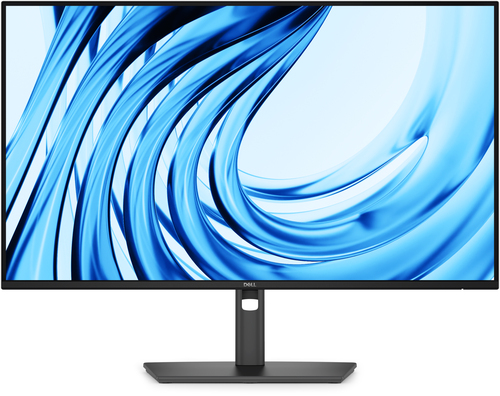 DELLDell Pro P P2726H - LED monitor - Full HD (1080p) - 27"DELL-P2726HThe Dell Pro P P2726H monitor offers a 27-inch LED-backlit LCD display with Full HD (1920 x 1080) resolution, providing visuals with a vibrant color g…In stockView product →
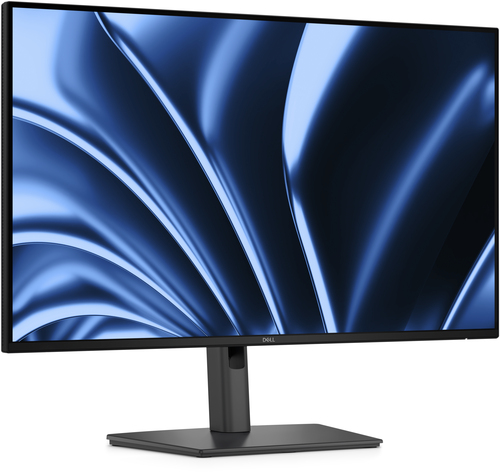 DELLDELL P2726HE USBC MONDELL-P2726HEDELL Pro P P2726HE, 68.6 cm (27"), 1920 x 1080 pixels, Full HD, LCD, 8 ms, GreyIn stockView product →
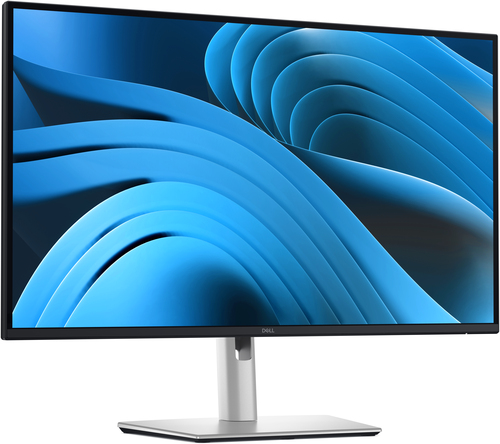 DellDell Pro Plus P2725D - LED monitor - QHD - 27"DELL-P2725DThe Dell Pro 27 Plus QHD Monitor P2725D combines performance with sleek design, making it an ideal choice for both work and entertainment. Featuring a…In stockView product →
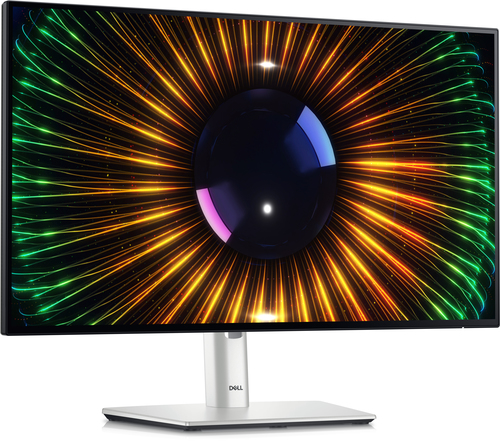 DellDell UltraSharp U2424HDELL-U2424HDiscover the perfect blend of performance and eco-conscious design with the Dell UltraSharp U2424H monitor. This 24-inch monitor delivers stunning Ful…In stockView product →
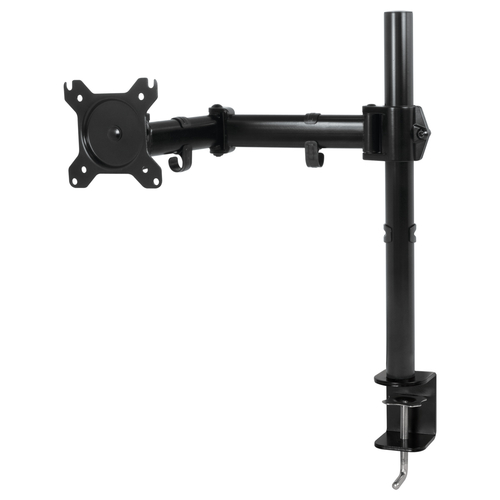 ARCTICARCTIC Z1 BASIC SINGLE MONITOR ARMAEMNT00039AARCTIC Z1 Basic - Desk Mount Monitor Arm, Clamp, 8 kg, 33 cm (13"), 81.3 cm (32"), 100 x 100 mm, BlackIn stockView product →
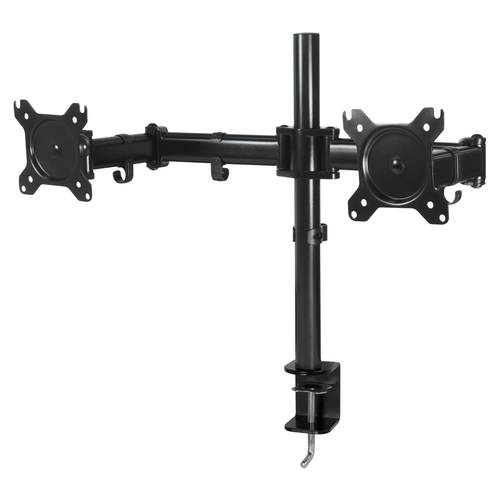 ARCTICARCTIC Z2 BASIC DUAL MONITOR ARMAEMNT00040AARCTIC Z2 Basic, Clamp, 16 kg, 33 cm (13"), 68.6 cm (27"), 100 x 100 mm, BlackIn stockView product →
Get the latest IT insights
Expert tips, infrastructure news, and product updates — delivered weekly.